Integrate Veeam® 13 with IDrive® e2 Cloud
Veeam® 13 is a major release of Veeam® Backup & Replication that introduces a Linux-based appliance for stronger security, reduces Windows dependencies, and features a modern web-first interface with AI-powered intelligence for smarter data protection. It brings performance improvements, streamlined deployment, and advanced ransomware defense while deprecating legacy components to strengthen platform efficiency. Integrating Veeam® 13 with IDrive® e2 extends these capabilities with a scalable, secure, and cost-effective cloud object storage solution, enabling systematic backup, recovery, and long-term data resilience.
Prerequisites
Before you begin, ensure the following:
- An active IDrive® e2 account. Sign up here if you do not have one.
- A bucket in IDrive® e2. See how to create a bucket.
- Valid Access Key ID and Secret Access Key. Learn how to create an access key.
- Veeam® Backup & Replication version 13 and installed on a supported OS like RHEL. Refer to the official documentation for system requirements.
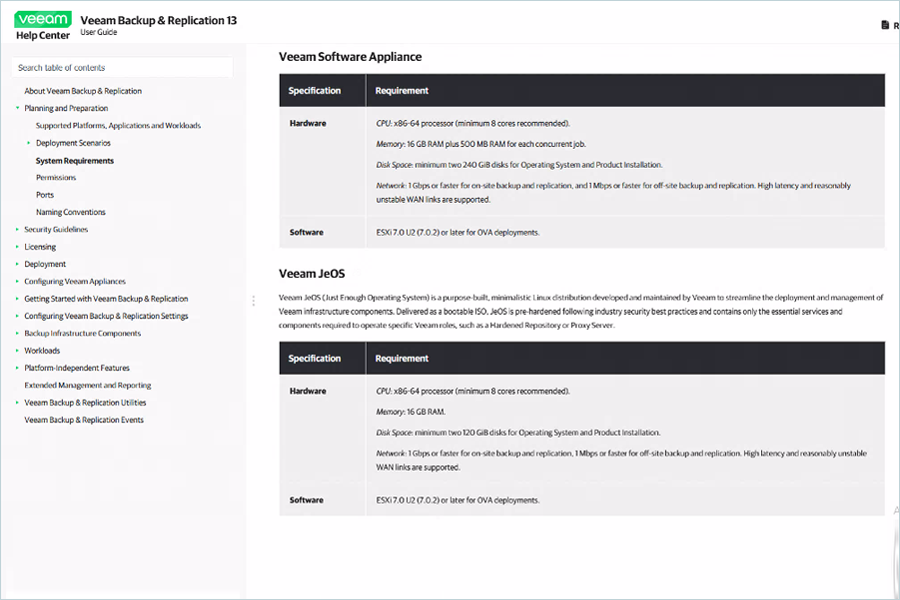
- The OVA file downloaded from the official download page
Install Veeam® 13 on a Linux Server in VMWare ESXi
Add IDrive® e2 Cloud Storage as Backup Repository
To configure IDrive® e2 as an object storage repository, follow the steps below:
- Launch Veeam® Backup and Replication 13.
- Navigate to Backup Infrastructure > Backup Repositories and click Add Repository.
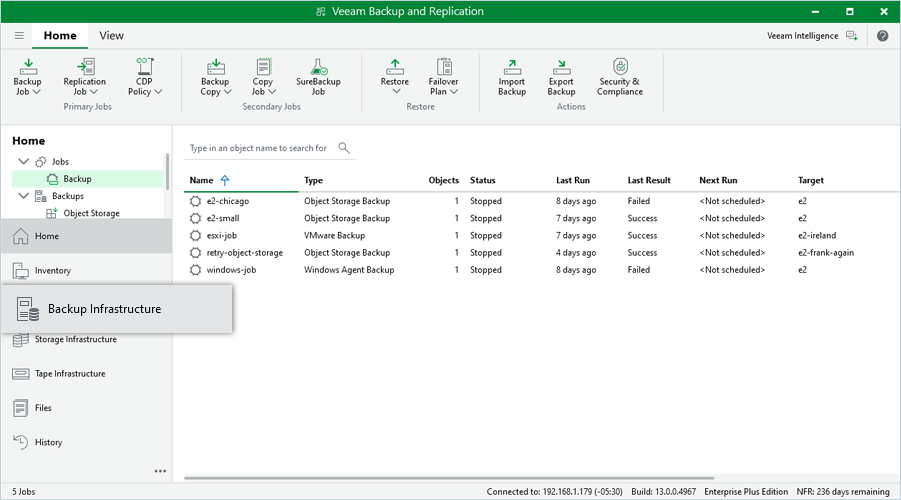
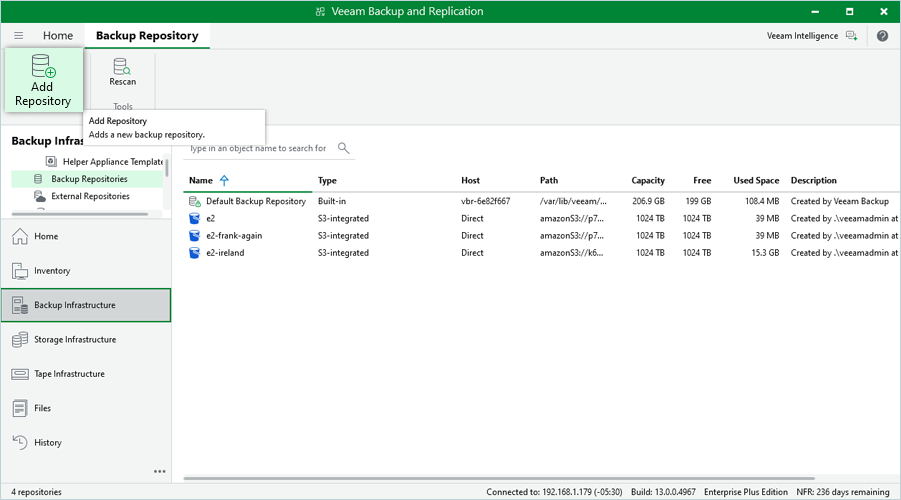
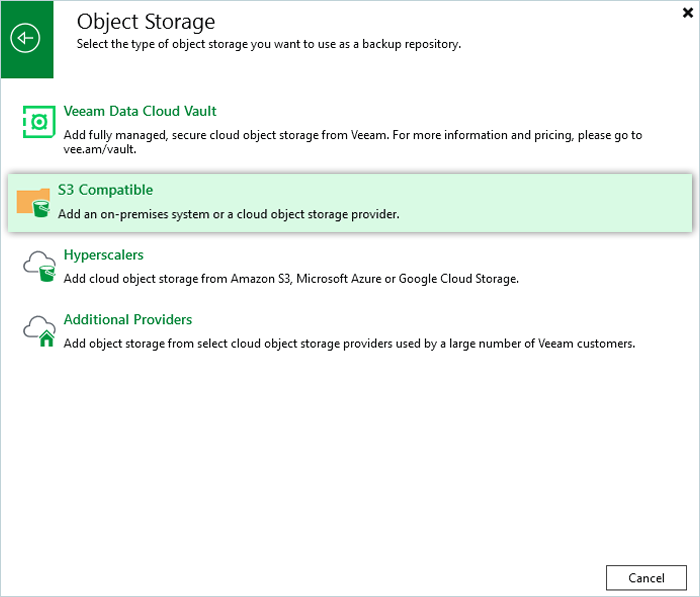
- Select Object Storage.
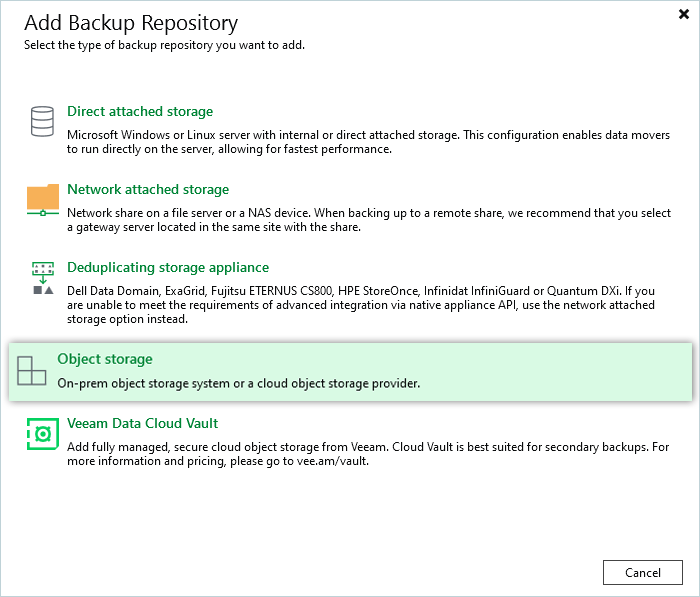
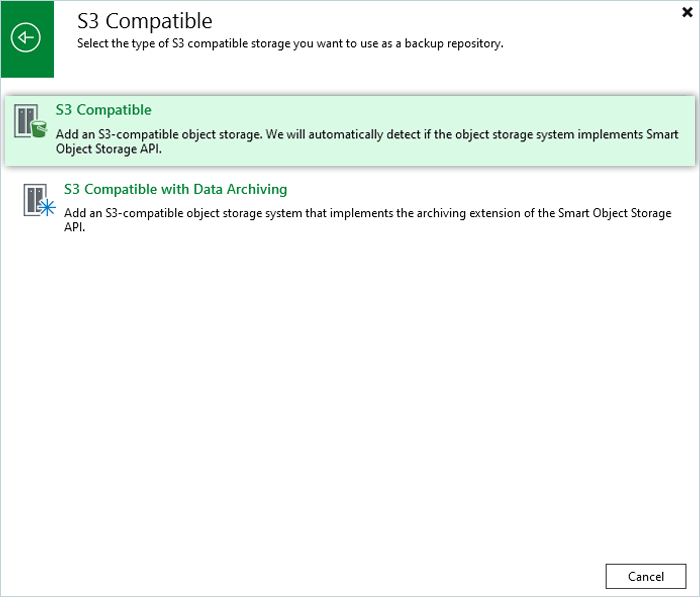
- Select S3 Compatible.
- Select S3 Compatible.
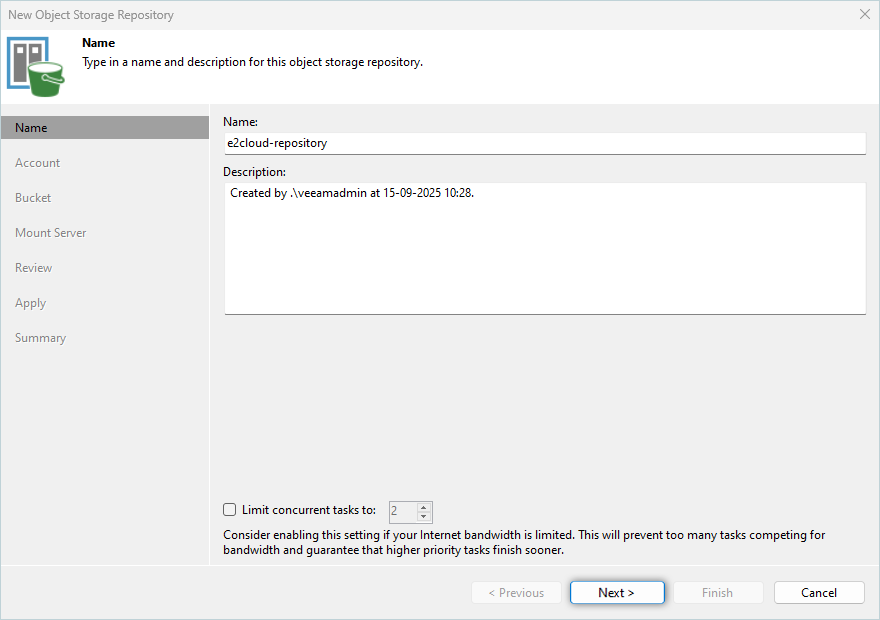
- Enter a Name and Description for the repository. Click Next.
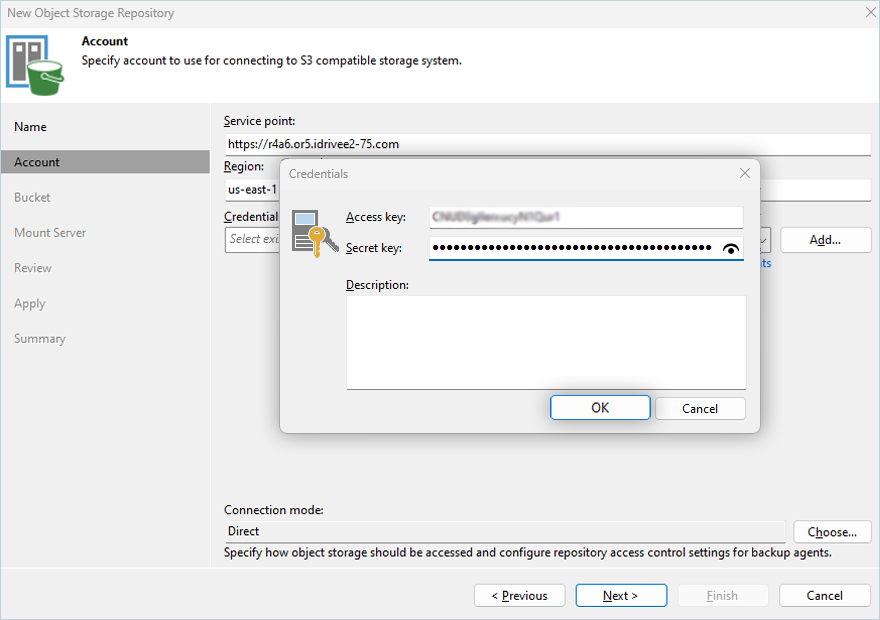
- Input the IDrive® e2 Endpoint URL under Service Point, Region, and click Add. Learn more about regions and endpoints.
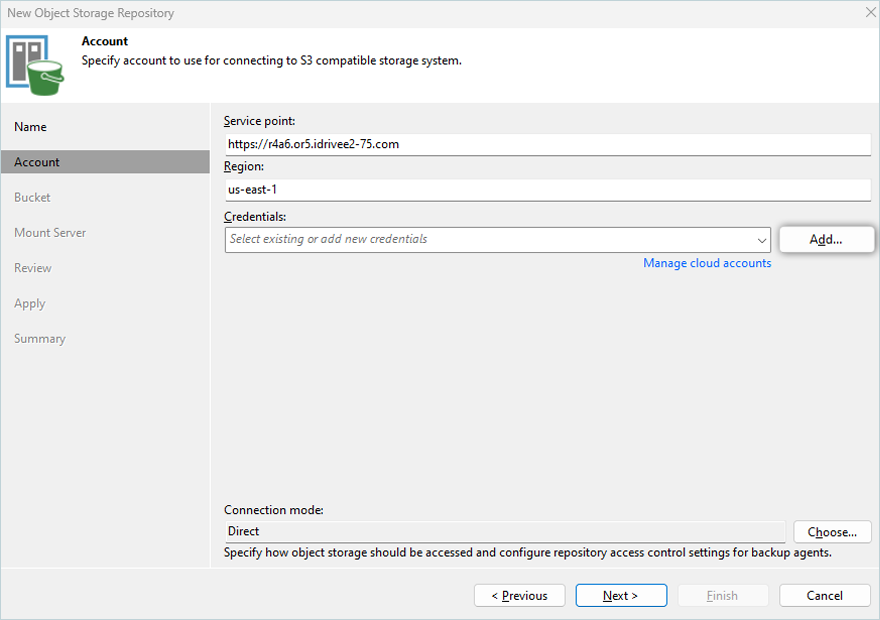
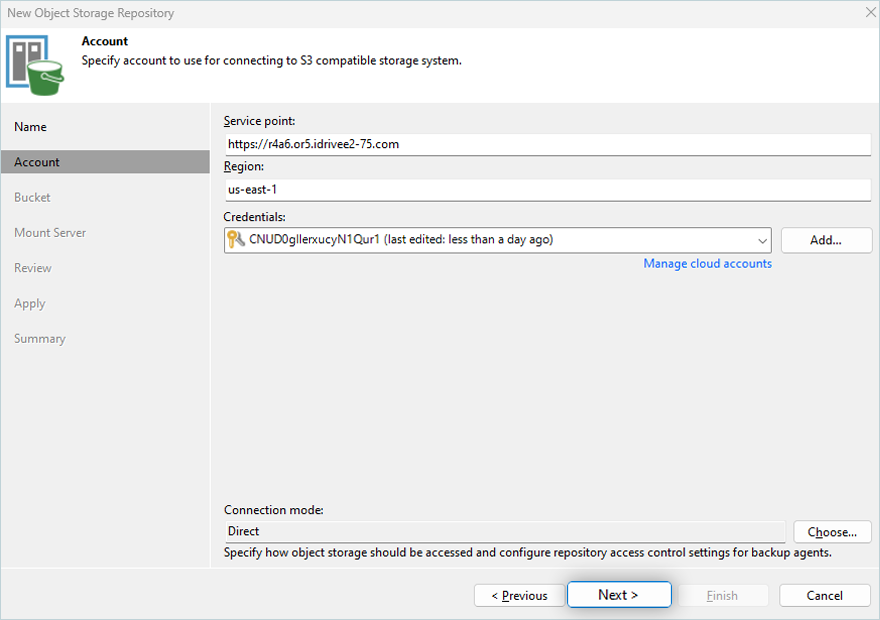
- Input the IDrive® e2 Access Key and Secret Key and click OK. Learn more about Access Keys
- Click Next.
- Click Browse and select the Bucket. Click OK.
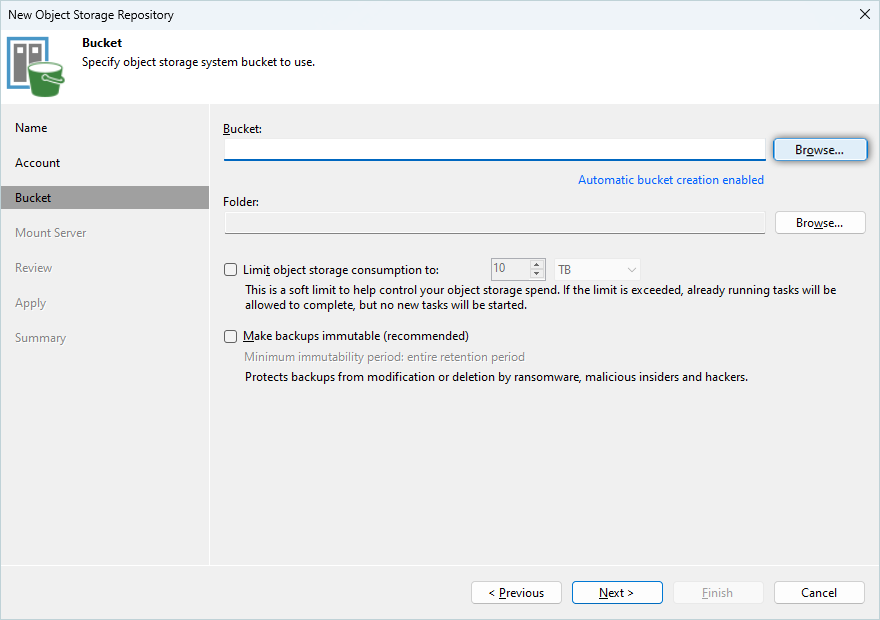 Note: Disable Automatic bucket creation enabled by clicking the link and clearing the Create new buckets automatically (recommended) checkbox.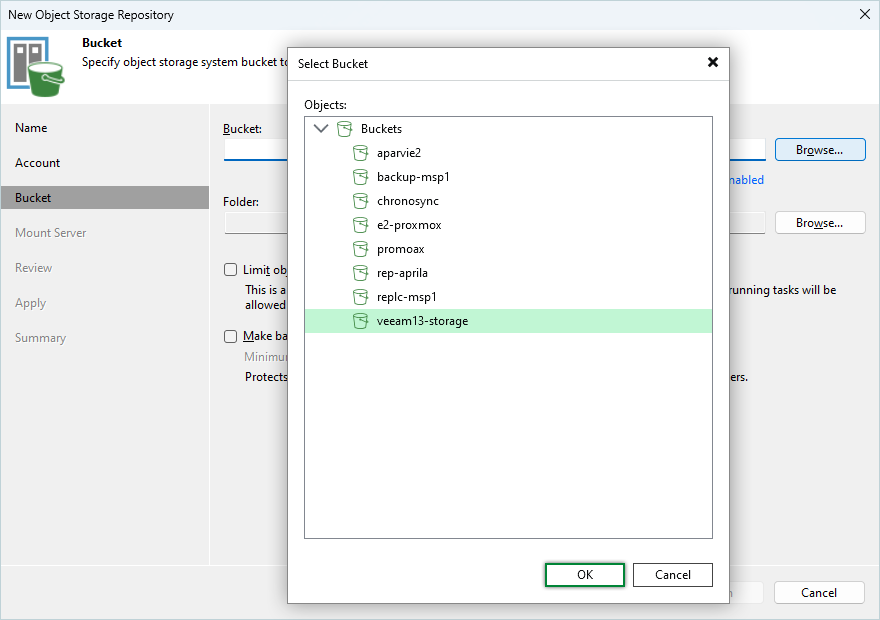
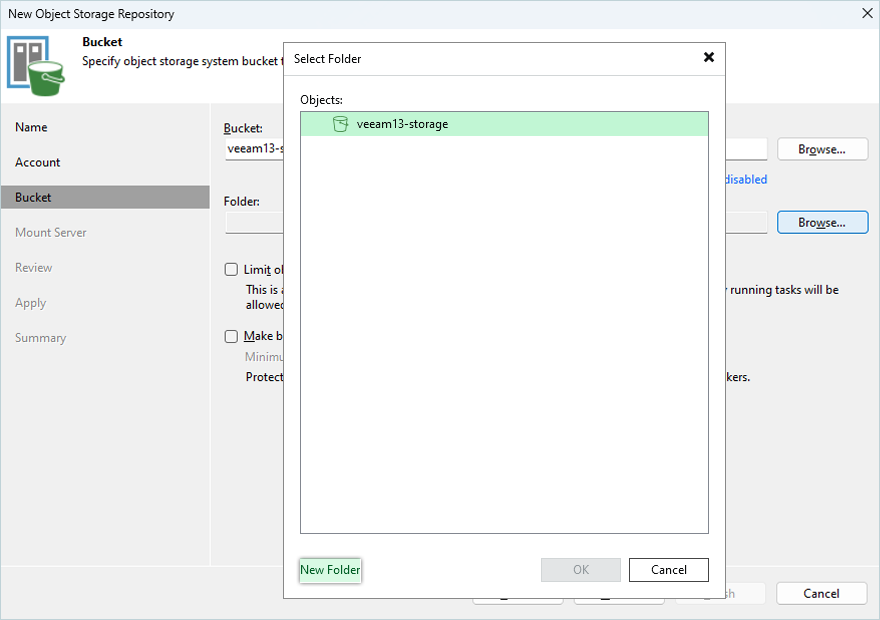
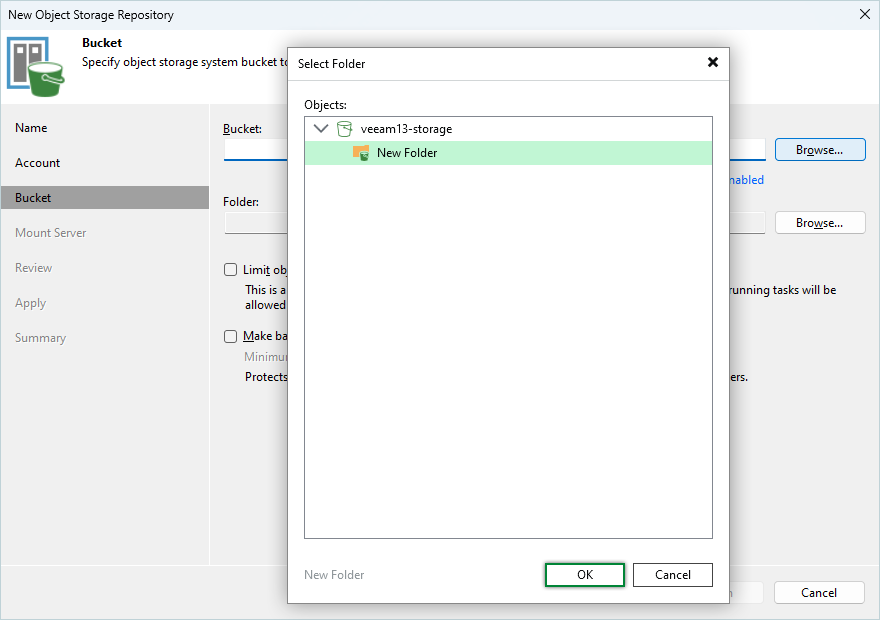
- Click Browse > New Folder. Enter a folder name, press the Enter key to confirm the name, and click OK.
- Select the Make recent backups immutable for x days checkbox to make recent backups immutable.
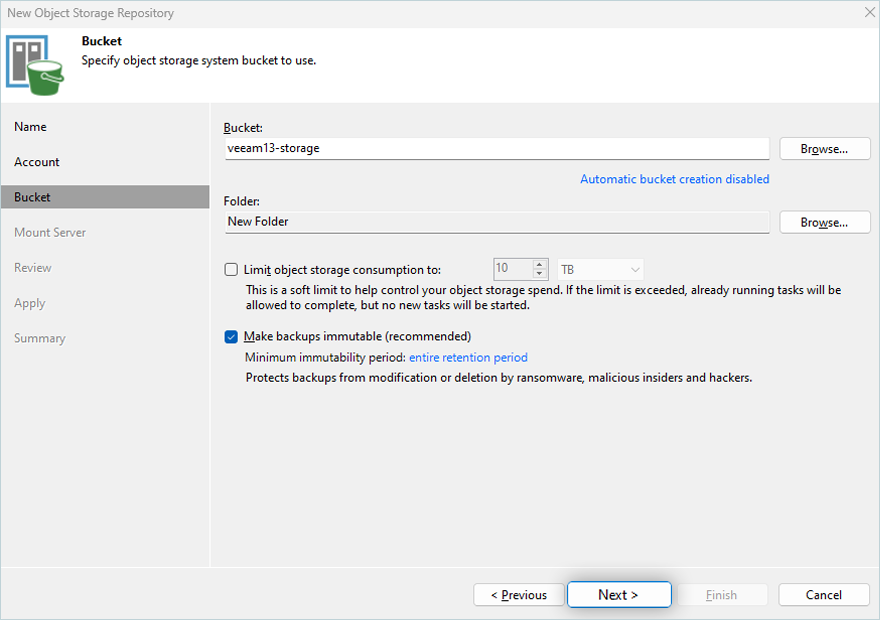
Note:- We recommend enabling this feature to protect your data from ransomware.
- Automatic bucket creation should be disabled if you select an existing bucket from your IDrive® e2 account.
- To mount the server, click Next.
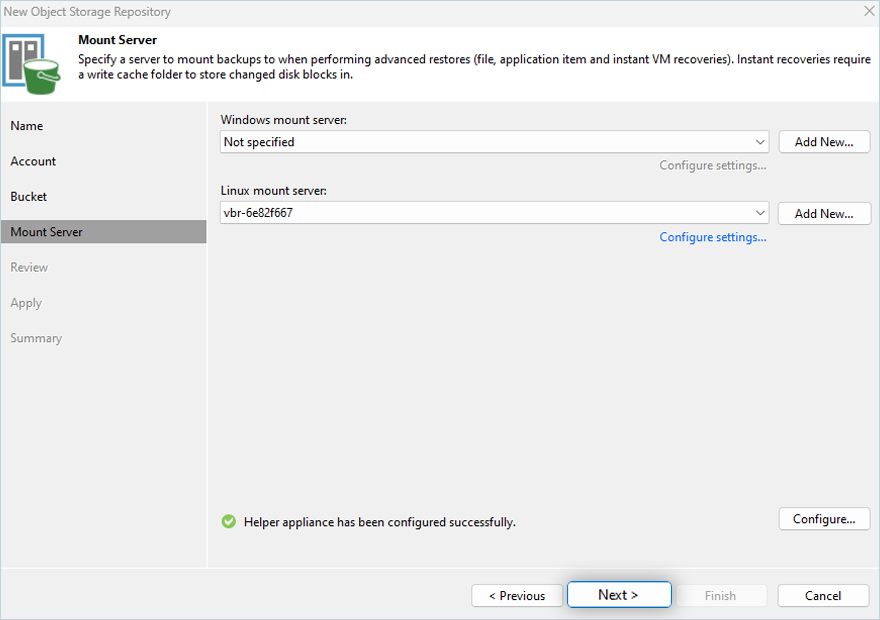
- Review the configuration and click Apply.
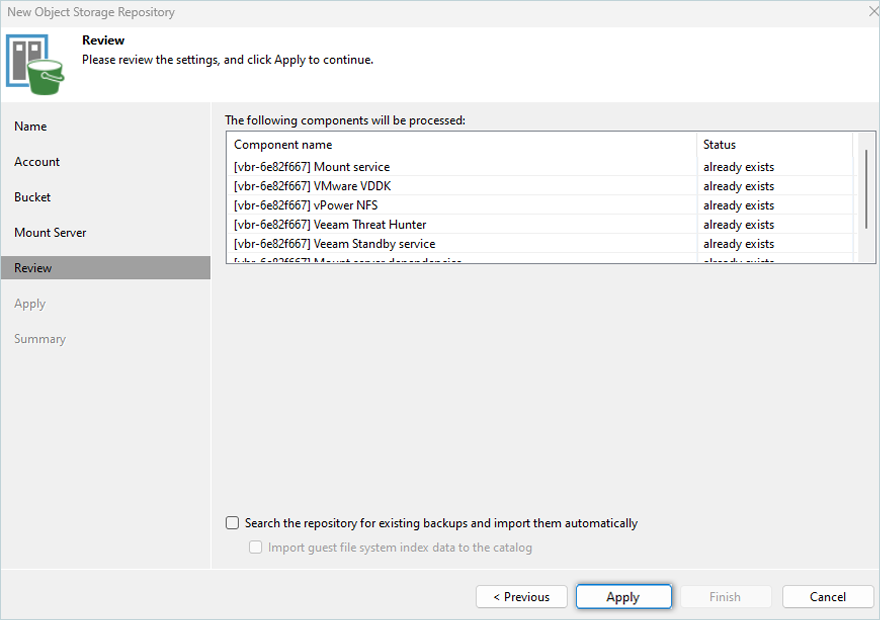
- Click Next.
- In the summary tab, review the settings and click Finish.
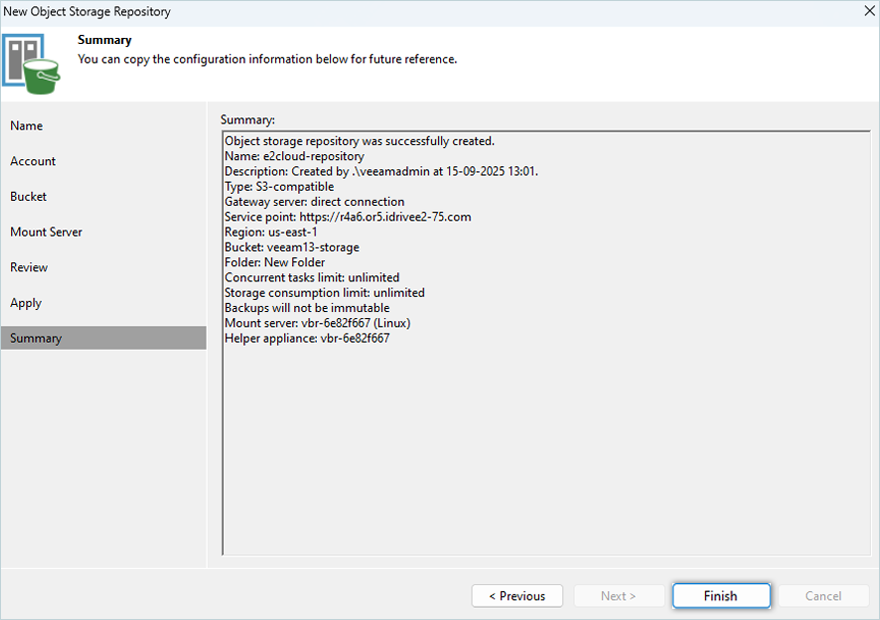
For detailed step-by-step instructions from Veeam® on how to add a Scale-Out Repository, refer here.
Add Backup and Run
To configure a backup job with IDrive® e2, follow the steps below:
- Navigate to Home > Jobs > Backup Job > Virtual Machine.
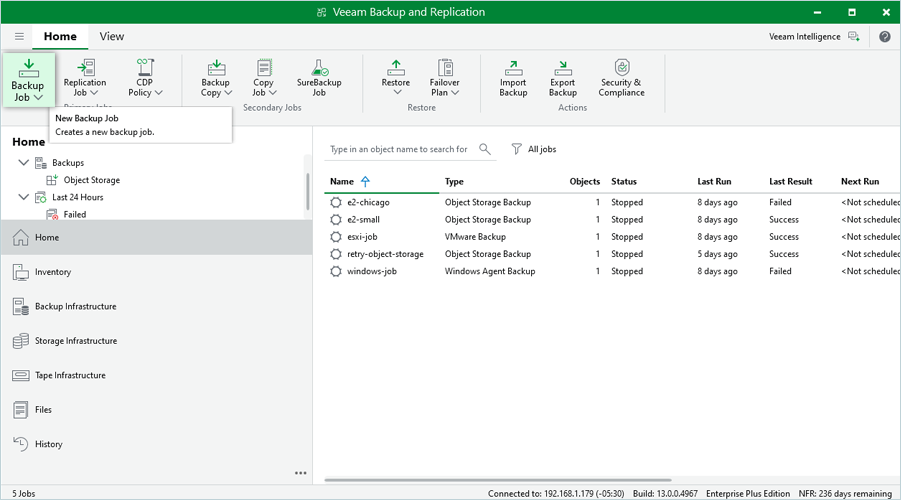
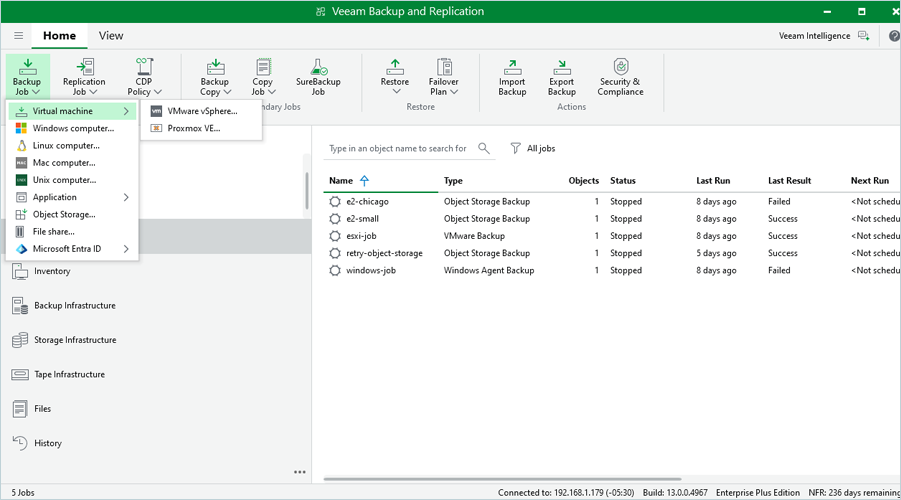
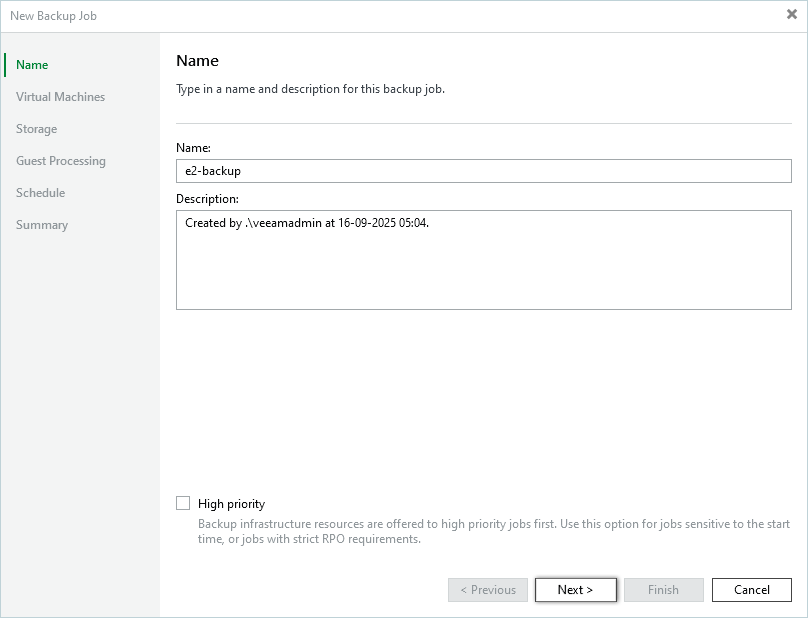
- Enter a Name and Description for the backup job. Click Next.
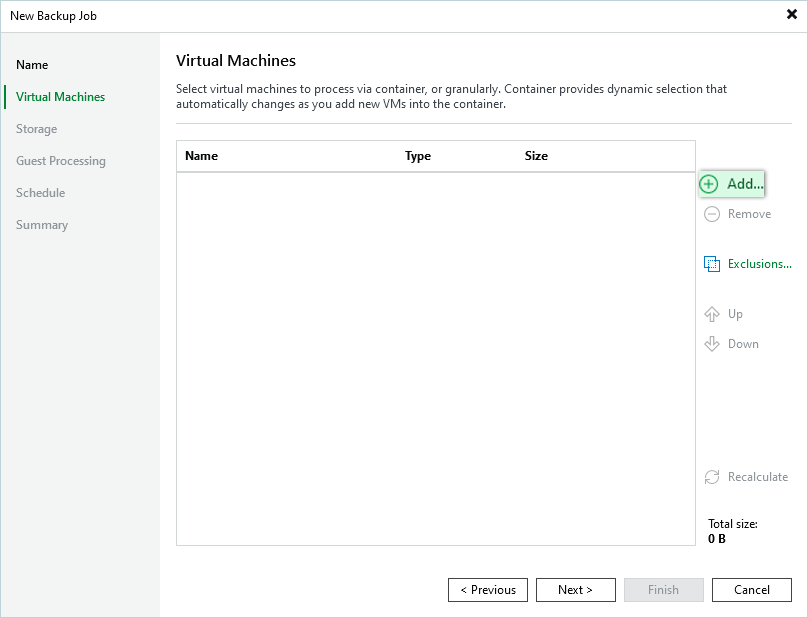
- Click Add on the RHS menu.
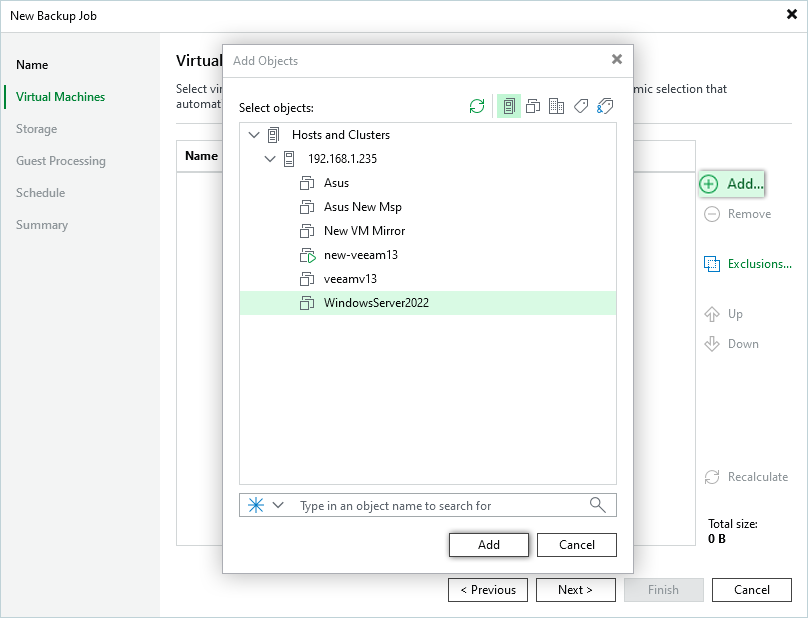
- Select the virtual machine(s) to be backed up and click Add. Repeat to add more VMs.
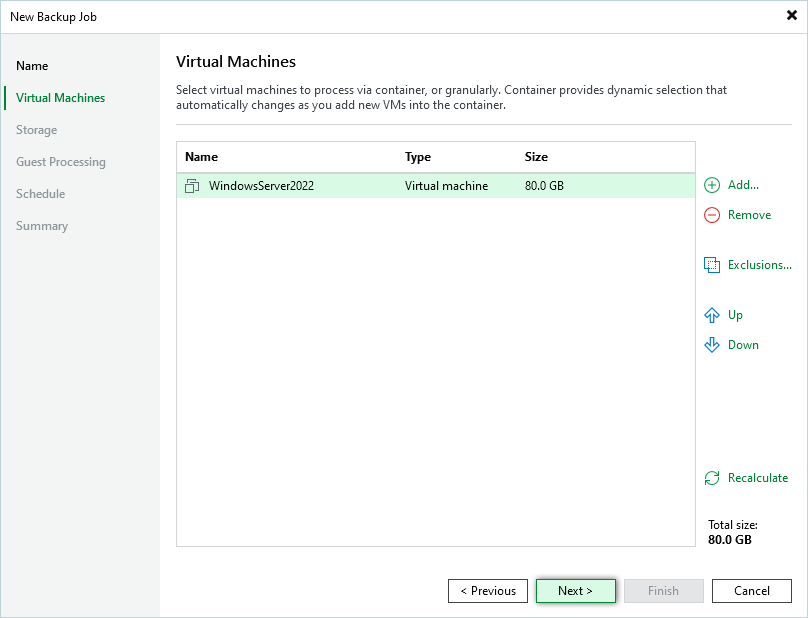
- Click Next.
- Select IDrive® e2 Backup Repository from the Backup repository dropdown menu.
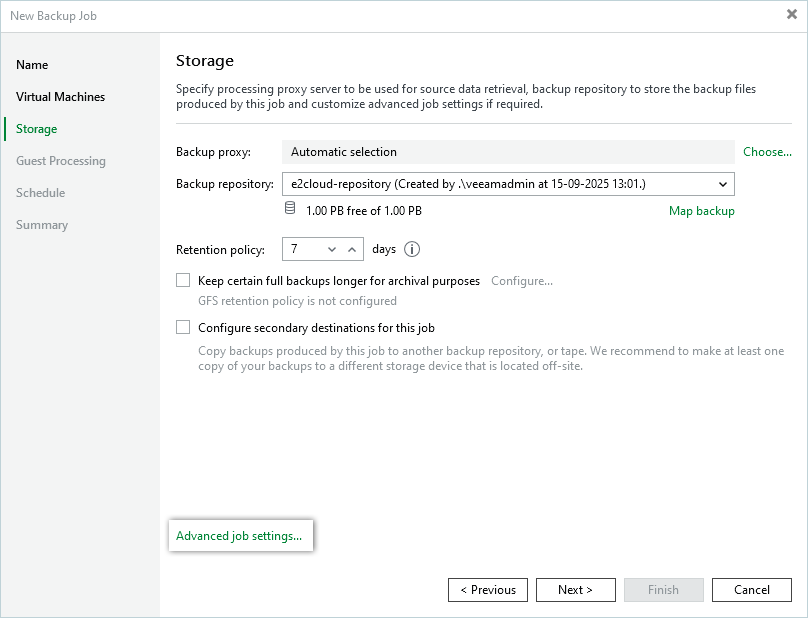
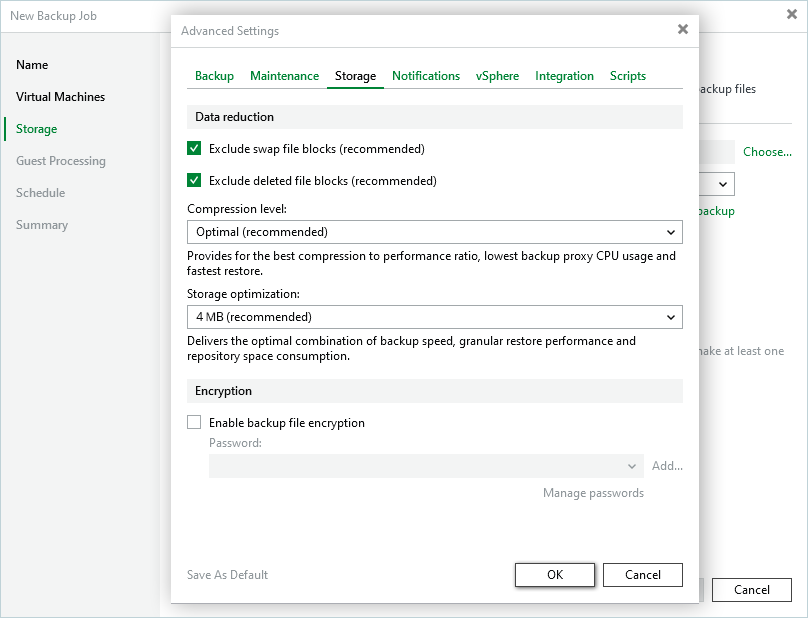
- Click Advanced and navigate to the Storage tab. Set Storage optimization to 4MB, and click OK.
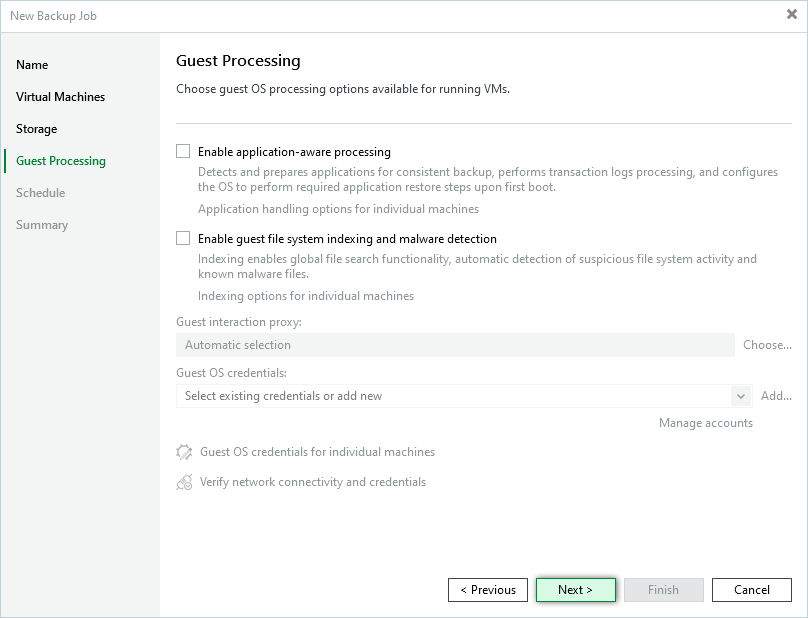
- Click Next in the New Backup Job window.
- Continue to the Schedule page without any modifications to the Guest Processing window.
- Check the Run the job automatically checkbox and set a schedule. Click Apply.
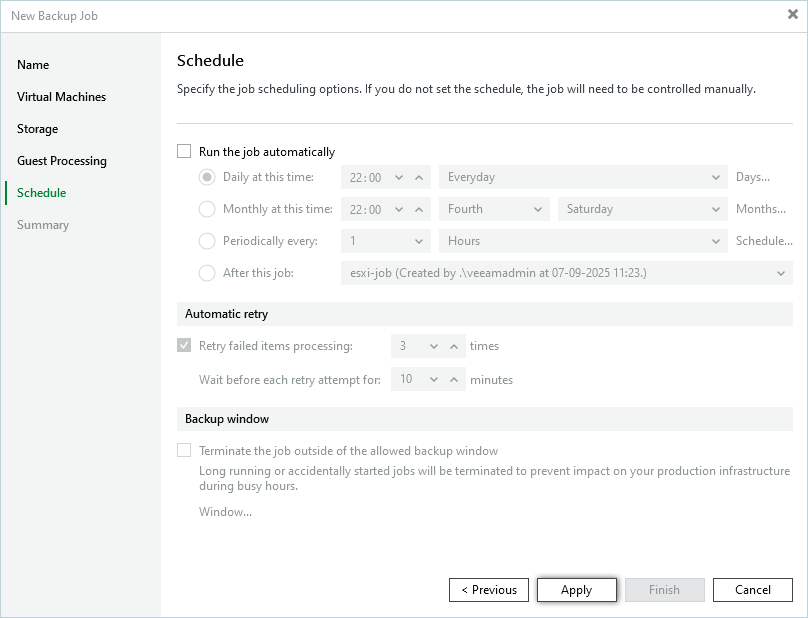
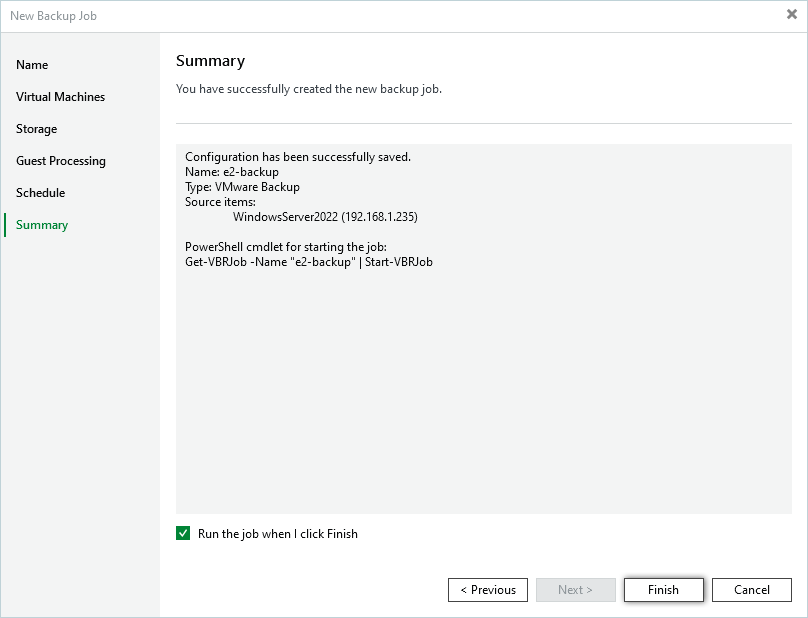
- You can, optionally, check the Run the job when I click Finish checkbox.
- In the Summary tab, click Finish. Your direct-to-cloud backup job to IDrive® e2 is configured with immutability!
Note: Data restoration is handled by your specific backup solution provider and is affected by multiple variables that are unique to your environment. For application-related enquiries/support, it is strongly recommended you seek guidance from the technical team of your backup solution provider.